
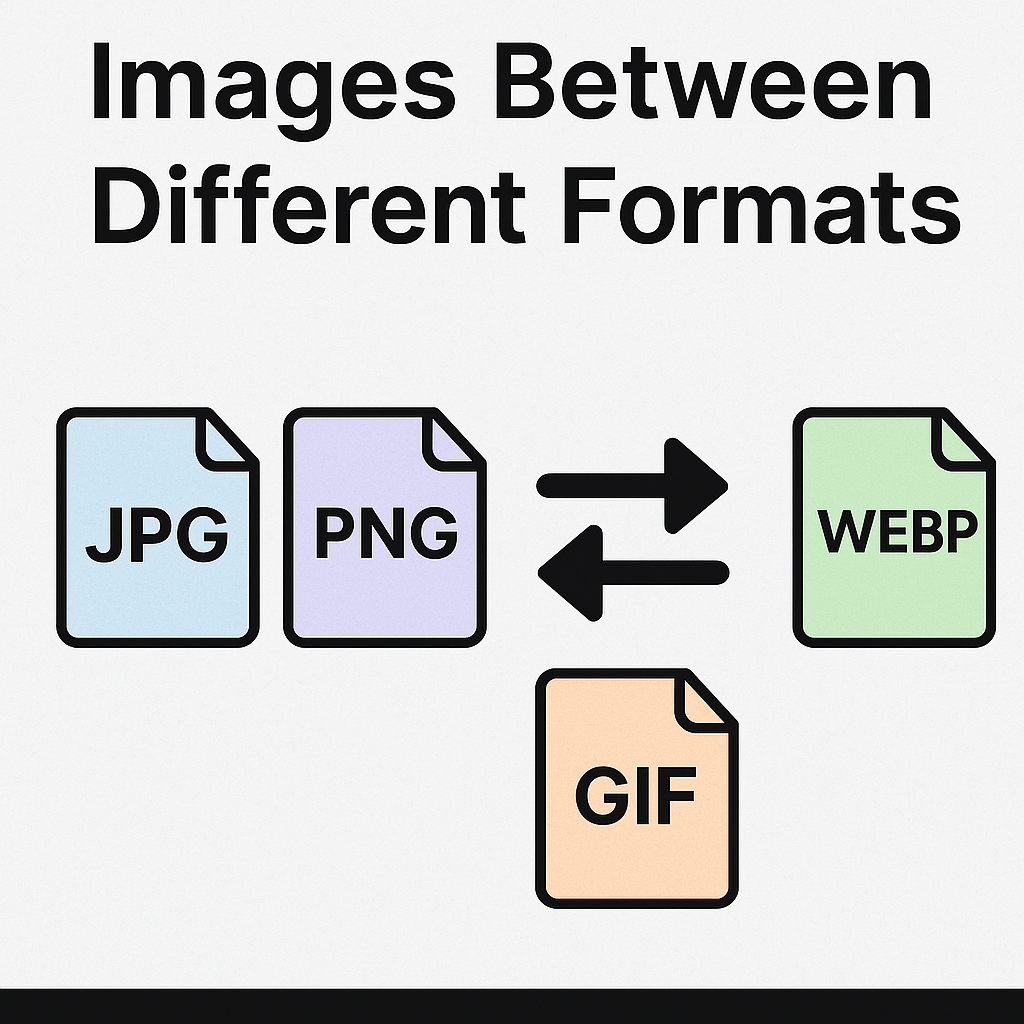
Images come in many formats like JPEG, PNG, WebP, BMP, and GIF. Sometimes, you need to change an image’s format – for example, converting a JPEG to a PNG or a WebP to a JPEG. Whether it’s for web optimization, transparent backgrounds, or better quality, image conversion is simple if you know the right tools.
In this comprehensive guide, you’ll learn why and how to convert images between different formats, explore the best tools (including CalcToolify), understand common mistakes to avoid, and get answers to frequently asked questions
Why Convert Images Between Formats?
Image conversion is more than just changing file extensions. The format you choose impacts image quality, file size, transparency, and compatibility. Below are some of the most common reasons people convert images:
- Transparency:
PNG and WebP support transparent backgrounds, unlike JPEG. Designers often convert to PNG for this reason. - Compression and File Size:
WebP and AVIF provide excellent image compression without significant quality loss. This is why web developers often convert PNG or JPEG files to WebP. - Editing and Printing:
Some software requires a specific format (e.g., TIFF for professional printing or PSD for editing). - Compatibility:
Certain apps, email platforms, or websites may not accept newer formats like WebP. Converting WebP to JPEG or PNG solves this issue. - Better Performance:
Smaller file sizes mean faster website loading. This is essential for SEO and user experience.
Popular Image Formats and When to Use Them
Choosing the right format depends on your purpose. Here’s a detailed explanation of the most widely used formats:
JPEG (JPG)
- Description: JPEG is a compressed image format designed to reduce file sizes. It uses lossy compression, meaning some details are removed permanently to keep the file small.
- When to Use:
- Photographs
- Social media uploads
- Email attachments where file size matters
- Pro Tip: Avoid repeatedly editing and saving JPEG images, as quality degrades with each save.
PNG
- Description: PNG is a lossless format that preserves details and supports transparent backgrounds. It retains sharpness and quality without compression artifacts.
- When to Use:
- Logos and icons
- Screenshots
- Images with text or graphics
- Images that require transparency
- Pro Tip: PNG files are larger than JPEG. Use only when you need transparency or lossless quality.
WebP
- Description: A modern format created by Google, WebP provides excellent compression and maintains good quality. It supports both lossy and lossless compression.
- When to Use:
- Websites (to reduce page load times)
- Apps where performance is crucial
- Pro Tip: Convert your PNG/JPEG to WebP for better speed. Not all old browsers support WebP, but support is rapidly growing.
GIF
- Description: GIF supports a limited color palette and basic animations. Its small size and simplicity make it popular for memes and stickers.
- When to Use:
- Short animations
- Simple icons
- Pro Tip: Avoid GIF for photos because of its limited 256-color palette.
TIFF
- Description: TIFF (Tagged Image File Format) is a high-quality lossless format often used in photography, medical imaging, and publishing.
- When to Use:
- Archiving and professional photo printing
- Pro Tip: Use TIFF for quality, but not for web or email because of large file sizes.
BMP
- Description: BMP is a basic uncompressed format, mostly outdated now. It preserves every pixel and results in very large files.
- When to Use:
- Rarely used; sometimes for Windows applications or software compatibility testing.
CalcToolify Image Conversion Tools
For quick conversions, CalcToolify provides an excellent set of free online tools that allow you to convert images without downloading software. These tools work on any device (PC, tablet, or mobile) and are beginner-friendly.
Tool Name: Universal Image Converter
Description: Convert any image to multiple formats including JPG, PNG, and WebP. Perfect for general conversions.
Tool Name: WebP to PNG Converter
Description: Convert WebP images to PNG format without losing transparency or quality.
Tool Name: WebP to JPG Converter
Description: Change WebP format to JPG for compatibility with apps and websites.
Tool Name: PNG to JPG Converter
Description: Convert PNG images into JPG format easily while reducing file size.
Tool Name: PNG to WebP Converter
Description: Convert PNG files to WebP for smaller file size and faster website loading.
Tool Name: JPG to WebP Converter
Description: Transform JPG images into modern WebP format.
Tool Name: Convert JPG to PNG
Description: Quickly convert JPG images to PNG for transparency and editing needs.
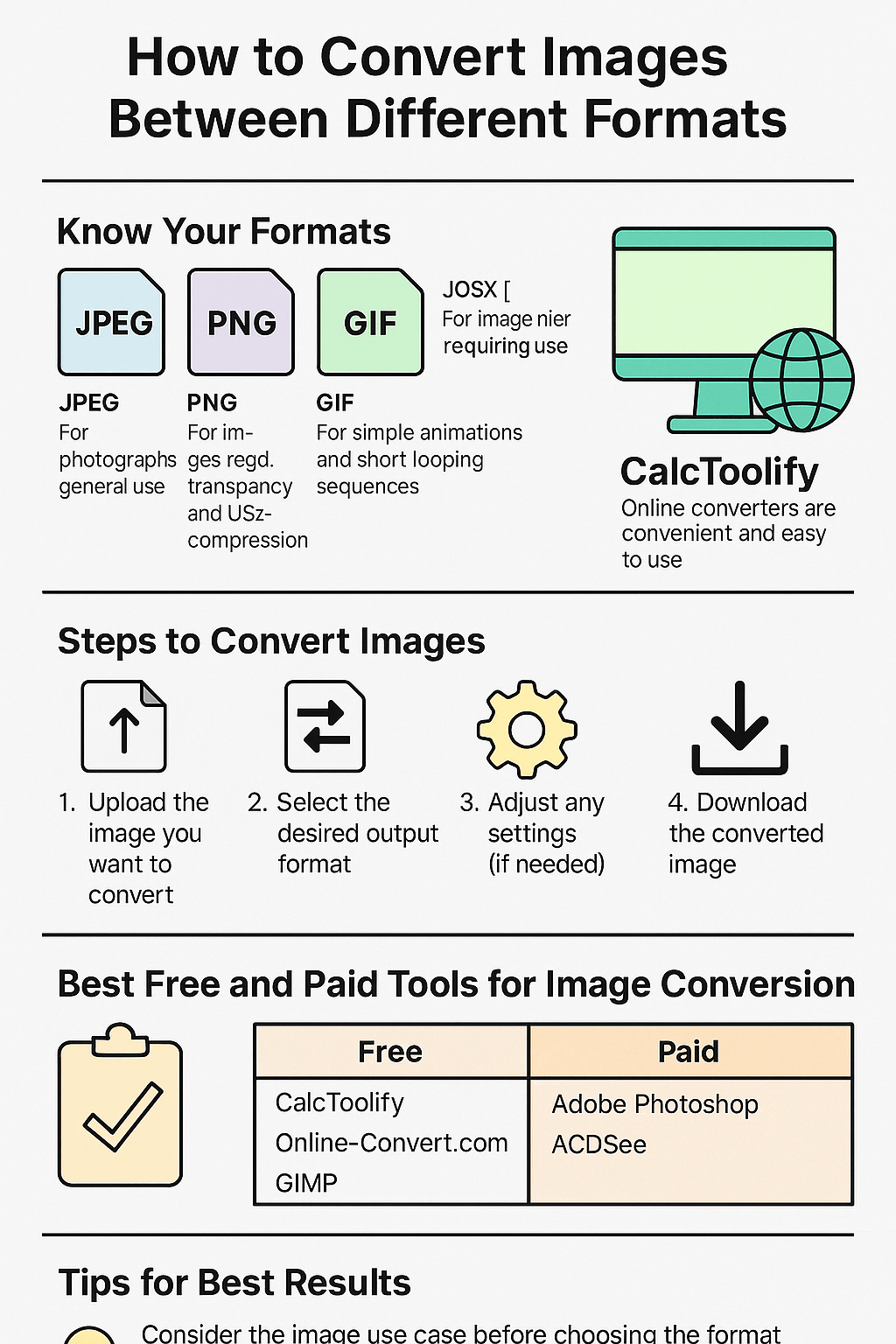
1. Using Online Tools (Fast & Easy)
If you don’t want to install any software, online converters are the fastest solution.
Use CalcToolify (https://calctoolify.com/)
- Go to CalcToolify Universal Converter.
- Upload your image.
- Choose the format you need (PNG, JPG, WebP, etc.).
- Click Convert and download your file instantly.
Pros:
- Free and beginner-friendly
- Works on any device
- No software required
Cons:
- Requires an internet connection
- Large batch conversions are slower than desktop apps
2. Using Desktop Software (Advanced Control)
Desktop tools are perfect for bulk conversions and advanced settings.
Popular Software:
- Adobe Photoshop
- GIMP (free)
- IrfranView (free)
Example Using GIMP:
- Open the image in GIMP.
- Click File > Export As.
- Select your desired format (PNG, JPEG, etc.).
- Adjust compression and quality settings before saving.
Pros:
- Greater control over output settings
- Batch processing options
Cons:
- Requires installation
- Steeper learning curve for beginners
3. Using Mobile Apps (On-the-Go Conversions)
If you work mostly on your phone:
- Snapseed (iOS/Android)
- Photo Converter (Android)
- Image Converter (iOS)
Steps are similar: open the image, tap Export, and choose the desired format.
Example: How to Convert JPEG to PNG
This is a very common need, especially for adding transparent backgrounds to JPEG images.
Using CalcToolify Online Tool
- Visit Convert JPG to PNG
- Upload your JPEG file.
- Choose PNG as the output format.
- Click convert and download your new PNG.
Using Desktop Software
- Open the JPEG in Photoshop or GIMP.
- Choose File > Export As or Save As.
- Select PNG and save.
Tips to Avoid Quality Loss During Conversion
- Use the original, highest quality file whenever possible.
- When converting for the web, prefer WebP over JPEG/PNG.
- Avoid converting multiple times (e.g., JPG > PNG > JPG).
- For logos or graphics, use PNG for clarity and sharpness.
- Always check transparency settings if needed.
Best Free and Paid Tools for Image Conversion
| Tool | Platform | Best For |
|---|---|---|
| CalcToolify | Online | Quick and easy conversions |
| GIMP | Windows/Mac | Free, advanced editing |
| Photoshop | Windows/Mac | Professional workflows |
| IrfanView | Windows | Bulk conversions |
| Snapseed | Mobile | Quick mobile editing |
Common Mistakes to Avoid
- Expecting a quality boost: Converting a low-res image to PNG won’t make it high quality.
- Wrong format selection: Use PNG for logos, not JPEG.
- Forgetting transparency: Converting PNG with transparency to JPEG will result in a white background.
FAQs About Image Conversion
1. Why should I convert an image to a different format?
Different formats serve different purposes—some are better for web (JPEG, PNG), while others support transparency (PNG, GIF) or high quality (TIFF, RAW).
2. What are the most common image formats?
The most common formats are JPEG, PNG, GIF, TIFF, BMP, WebP, SVG, and RAW.
3. How do I convert a JPEG to PNG?
You can use tools like Photoshop, GIMP, online converters (Zamzar, Convertio), or built-in OS tools (Paint, Preview on Mac). Try our free tool
4. Is there a loss of quality when converting images?
Yes, especially when converting from lossless formats (PNG, TIFF) to lossy ones (JPEG). Always keep the original file.
5. How can I convert multiple images at once?
Use batch conversion tools like Adobe Photoshop (Actions), XnConvert, or online batch converters.
6. What’s the best format for web use?
JPEG for photos (smaller size), PNG for transparency, and WebP for better compression.
7. How do I convert a PNG to JPEG without losing transparency?
JPEG doesn’t support transparency—convert to PNG-24 or GIF if transparency is needed. Try our free tool
8. Can I convert a GIF to MP4 or video format?
Yes, use tools like EZGIF, FFmpeg, or online GIF-to-video converters.
9. What’s the difference between lossy and lossless compression?
-
Lossy (JPEG): Smaller size, loses some quality.
-
Lossless (PNG, TIFF): Larger size, retains original quality.
10. How do I convert a HEIC (iPhone) image to JPEG?
Use Photos (Windows/Mac), online converters, or tools like iMazing HEIC Converter.
11. What’s the best free tool for image conversion?
-
Online: Zamzar, Convertio, Calc Toolify
-
Desktop: GIMP, XnConvert, IrfanView
12. How do I convert a PDF to an image format (JPEG/PNG)?
Use Adobe Acrobat, online PDF-to-image converters, screenshot tools or calctoolify free image tools.
13. Can I convert an image to a vector format (SVG)?
Yes, but simple images work best—use Adobe Illustrator, Inkscape, or online vectorizers.
14. How do I change an image format on my phone?
Use mobile apps like Photo Converter (Android), Image Size (iOS), or Snapseed.
15. Does converting an image affect its resolution?
Not if you use lossless formats (PNG, TIFF). However, JPEG compression can reduce quality over multiple saves.
16. Why is PNG larger than JPEG?
PNG is lossless, meaning it preserves more detail. Use PNG to JPG Converter to reduce size.FAQs About Calctoolify
Is CalcToolify free to use?
Yes, CalcToolify is completely free for image conversions.
What image formats does CalcToolify support?
CalcToolify supports JPG, PNG, GIF, BMP, and WebP. For WebP conversions, see WebP to PNG and WebP to JPG.
Can I convert images without losing transparency?
Yes, convert to PNG using Convert JPG to PNG.
Do I need to sign up to convert images?
No, CalcToolify works without any login.
Does CalcToolify work on Mac?
Yes, it works on Mac, Windows, and Linux because it’s web-based.
Can I convert a WebP image to JPEG?
Yes, upload your WebP to WebP to JPG Converter.
Is there any file size limit on CalcToolify?
Small to medium images convert instantly. For very large files, try desktop tools.
Can I convert HEIC images to JPG?
Currently, CalcToolify doesn’t support HEIC.
Does CalcToolify compress images during conversion?
Formats like JPEG will be compressed, but PNG/WebP conversion retains high quality.
Conclusion
Converting images between formats (JPEG, PNG, WebP, and more) is simple once you know the right tools. Whether you choose CalcToolify for fast online conversions, software for professional work, or mobile apps for on-the-go edits, the steps are straightforward. Always choose the format based on your purpose and keep quality in mind.
Leave a Reply