
In today’s digital world, PDF files are everywhere – from school projects and office reports to eBooks, invoices, and contracts. They are popular because they keep formatting intact across devices.
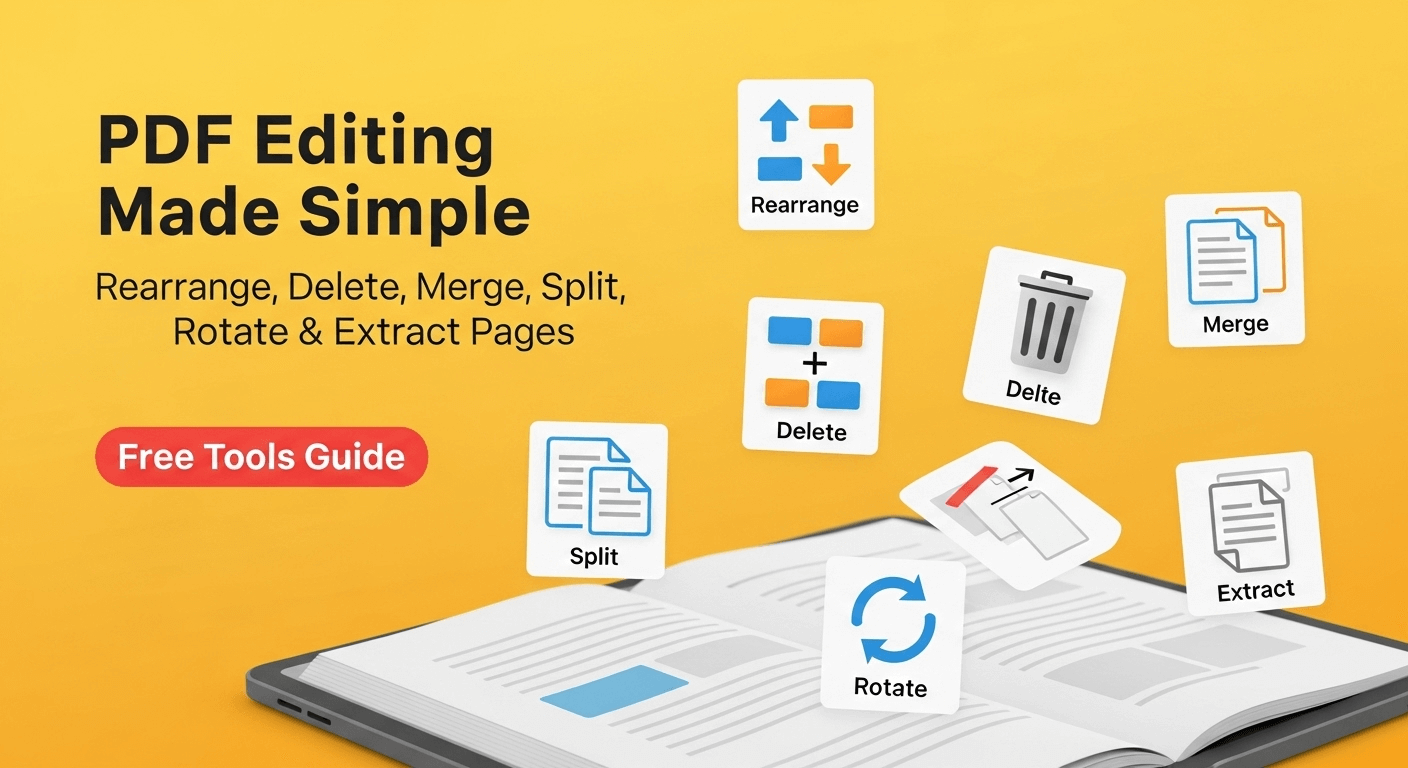
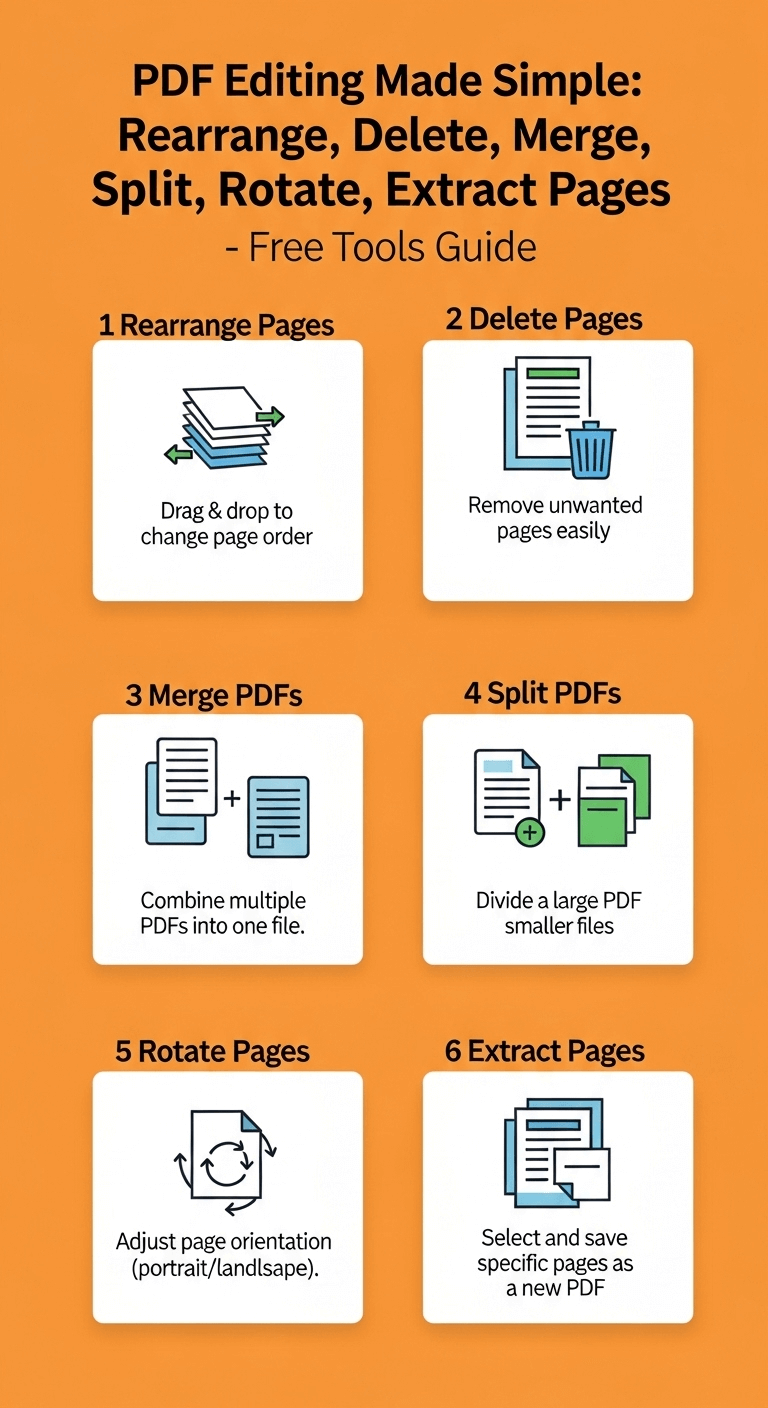
But what happens when you need to rearrange pages, delete unwanted pages, merge multiple PDFs into one, split one PDF into several smaller files, rotate pages that are upside down, or extract only a few pages from a large file?
Many people think you need Adobe Acrobat Pro to do these tasks – but the truth is, you can easily manage PDF pages for free using online tools and simple offline methods.
This guide is your one-stop solution for all PDF page management tasks. Whether you’re a student, a professional, or just someone who wants to organize PDFs better, you’ll learn step-by-step how to edit PDF files without expensive software.
Why You Need PDF Editing Skills
PDF files are widely used because they’re:
- Secure
- Compact
- Compatible with almost any device
However, they are not easy to edit. That’s why knowing free methods to manage PDF pages can save you hours of frustration.
Who benefits the most?
- Students: Submitting projects and need to combine or reorder pages.
- Professionals: Preparing reports, contracts, or proposals.
- Small business owners: Creating invoices and presentations.
- Teachers: Splitting large eBooks into chapters for students.
Free & Easy Tools for PDF Editing (Without Adobe Acrobat)
Before we dive into specific tasks, here are some popular free tools you can use online:
- Smallpdf (https://smallpdf.com)
- ILovePDF (https://ilovepdf.com)
- PDFCandy (https://pdfcandy.com)
- Sejda PDF (https://sejda.com)
If you prefer offline methods, try:
- LibreOffice Draw (open source)
- PDFsam Basic (free for splitting/merging)
- Microsoft Edge or Preview (Mac) for basic rearranging and saving
1. How to Rearrange Pages in a PDF
Have you ever created a PDF and realized the order of the pages is wrong? Don’t worry, rearranging PDF pages is simple.
Rearrange Pages Online (Free Method)
- Go to ilovepdf.com/rearrange-pdf (or similar).
- Upload your PDF file.
- Drag and drop the pages to reorder them as you like.
- Click “Apply” or “Organize”.
- Download the newly organized PDF.
These tools are free and don’t add a watermark.
Use our free tool:
Rearrange PDF Pages – Drag & drop pages, reorder them quickly, and download.
Link: https://calctoolify.com/rearrange-pdf-pages/
Rearrange PDF Pages on Windows 10/11 or Mac (Offline)
If you don’t want to upload your file:
- Open the PDF in LibreOffice Draw or similar software.
- Use the thumbnail pane to move pages around.
- Export the file as a PDF again.
2. How to Delete Pages from a PDF
Sometimes, PDFs include blank or unwanted pages. Removing them is quick.
Delete Pages Online in Seconds
- Go to smallpdf.com/delete-pages-from-pdf or use the tool below.
- Upload your file.
- Click on the pages you want to remove.
- Save and download.
Use our free tool:
Remove PDF Pages – Select pages to remove and save a clean PDF.
Link: https://calctoolify.com/remove-pdf-pages/
Remove Pages Without Adobe Acrobat
For offline deletion:
- Use PDFsam Basic: Open the file, choose “Split by page numbers” and exclude the unwanted pages.
- Or use LibreOffice Draw to delete and re-export.
3. How to Merge and Split PDF Files
Merge PDFs Without Paying for Adobe
Combining PDFs into a single document:
- Go to ilovepdf.com/merge_pdf or use the tool below.
- Upload all PDF files.
- Arrange them in the correct order.
- Click Merge and download.
Use our free tool:
- PDF Merge Tool – Combine multiple PDF files into one clean document.
Link: https://calctoolify.com/pdf-merge-tool/
Split PDFs into Individual Pages Online
- Go to smallpdf.com/split-pdf or use the tool below.
- Upload your PDF.
- Choose “Extract pages” or “Split into separate files”.
- Download your new files.
Use our free tool:
PDF Splitter Tool – Split a PDF into multiple smaller files easily.
Link: https://calctoolify.com/split-pdf-file/
4. How to Rotate PDF Pages Permanently
PDF pages sometimes appear sideways or upside down, especially after scanning.
Rotate PDFs Online (Free & Fast)
- Go to ilovepdf.com/rotate-pdf or use the tool below.
- Upload your PDF.
- Rotate specific pages or all pages.
- Save and download.
Use our free tool:
Rotate PDF Pages – Rotate one or all pages permanently.
Link: https://calctoolify.com/rotate-pdf-pages/
5. How to Extract Specific Pages from a PDF File
If you only need a few pages from a large file, extraction is the solution.
Extract Pages and Save as a New PDF
- Go to smallpdf.com/split-pdf or use the tool below.
- Choose the option to “Extract pages”.
- Select the pages you need.
- Save as a separate PDF.
Use our free tool:
Extract PDF Pages – Select and extract only the pages you need.
Link: https://calctoolify.com/extract-pdf-pages/
Additional Useful Tools from Calctoolify
PDF To Image Converter – Convert PDF pages to JPG or PNG.
https://calctoolify.com/pdf-to-image-converter/Add Page Numbers to PDF – Quickly number your PDF pages.
https://calctoolify.com/add-page-numbers/Compare PDF Files – Compare two PDF documents and find differences.
https://calctoolify.com/compare-pdf/
Online vs Offline PDF Editing – Which is Better?
Online Pros
- Fast
- No installation needed
- Works on any device
Online Cons
- Requires internet
- Potential privacy concerns
Offline Pros
- No internet needed
- Safer for confidential files
Offline Cons
- Requires software installation
- Slightly slower if you only need quick edits
Pro Tips for Managing PDFs Efficiently
- Use descriptive file names – “Project_Report_Final.pdf” is better than “doc1.pdf”.
- Compress PDFs – Reduce file size for emailing.
- Protect sensitive PDFs – Add password protection.
- Keep a backup copy before editing.
FAQs
1. Can I edit a PDF on my mobile phone?
Yes, apps like ILovePDF and Adobe Scan allow editing on Android/iPhone.
2. Is it safe to upload PDFs online?
For sensitive data, use offline methods. Trusted sites like Smallpdf use encryption.
3. Which free PDF tools are best?
- Online: ILovePDF, Smallpdf, CalcToolify tools
- Offline: PDFsam Basic, LibreOffice
4. Can I extract one page from a PDF and email it?
Yes. Use an Extract PDF Pages tool to create a single-page PDF.
5. How can I rotate just one page in a PDF?
Use Rotate PDF Pages and select the specific page.
6. How do I add page numbers to a PDF?
Upload to Add Page Numbers tool and choose position and style.
7. Can I compare two PDF files?
Yes. Use a Compare PDF tool to find differences.
8. What is the easiest way to split a 100-page PDF into chapters?
Use a Split PDF Tool and select the pages for each chapter.
9. Can I merge PDFs without a watermark?
Yes. CalcToolify PDF Merge Tool is watermark-free.
10. How do I convert PDF to images?
Use PDF To Image Converter to turn each page into a JPG/PNG.
11. Are these tools free?
Yes, the tools mentioned here are free for basic use.
12. Can I rearrange PDF pages without Adobe Acrobat?
Absolutely. Use Rearrange PDF Pages online or a free offline tool.
13. How do I protect a PDF with a password?
Use online services or desktop apps like PDFsam or Sejda.
14. Can I work on PDFs offline?
Yes, tools like PDFsam, LibreOffice, and Preview (Mac) work offline.
15. Which is faster: online or offline PDF editing?
Online tools are quicker for simple edits, but offline is safer for confidential files.
Conclusion
You don’t need to buy expensive software like Adobe Acrobat Pro to manage your PDF files.
With the free online and offline methods explained in this guide (and using CalcToolify’s PDF tools), you can now:
- Rearrange PDF pages
- Delete unwanted pages
- Merge multiple files
- Split large PDFs
- Rotate pages permanently
- Extract selected pages
These simple techniques will save you time, money, and frustration.
Bookmark this guide and share it with colleagues, friends, and students – everyone deals with PDFs sooner or later!
Leave a Reply